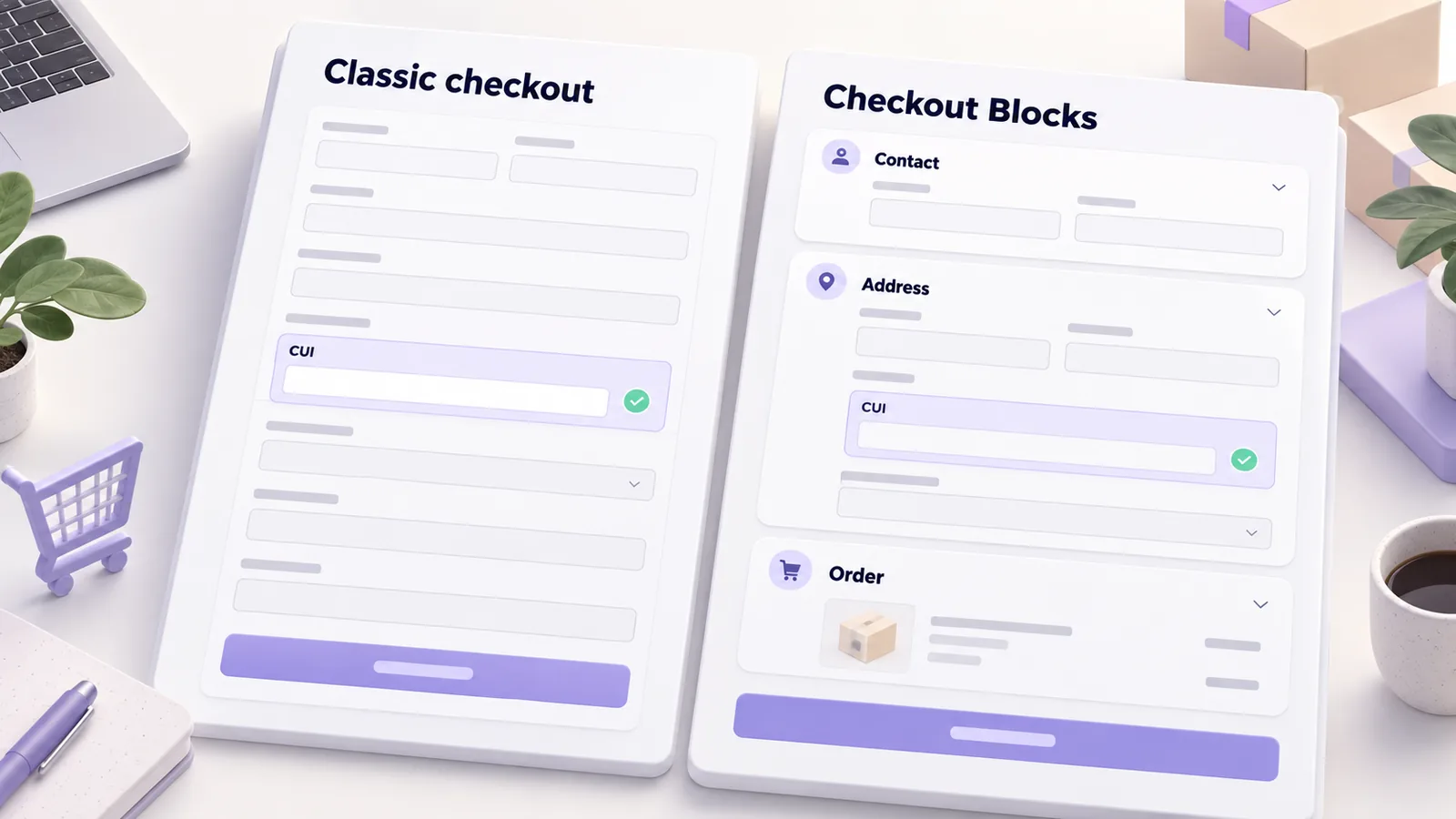
When you open the Checkout page of a WooCommerce store, you are actually looking at one of two different systems under the same name: the classic checkout, built on a shortcode and PHP templates, or the block checkout, built with the block editor and its own API. The difference matters in practice, because anything you added to the checkout through classic hooks does not work in the block version, and a store with Romanian-specific fields (CUI, county, city, customer type) feels that difference immediately.
This guide explains how to tell which checkout you use, how each one works, what most often breaks when moving from one to the other and how to bring your custom fields into blocks without putting orders at risk.
In short: check in the editor of the Checkout page whether you have the [woocommerce_checkout] shortcode (classic) or the Checkout block. New stores use the block checkout in recent WooCommerce versions, and extra fields are added there through the Additional Checkout Fields API (WooCommerce 8.9 or newer), not through classic filters. Always test on staging before moving a live store from one system to the other.
How to tell which checkout you use
Open the page set up as Checkout in the admin (usually under Pages, the one assigned in WooCommerce, Settings, Advanced, Page setup) and look at its content. If you see a Shortcode block with the text [woocommerce_checkout], you have the classic checkout. If you see a block named Checkout, with sub-blocks for contact, address, shipping options and payment, you have the block checkout. The same check applies to the cart, which can also be classic or block-based.
An older store may well be on the classic checkout even if WooCommerce is fully up to date: updating does not automatically replace the content of existing pages. A new store usually comes with blocks.
How the classic checkout works
The classic checkout renders the form through a shortcode and builds it from PHP templates that you can override in your theme. Every change goes through hooks and filters: woocommerce_checkout_fields to add or remove fields, woocommerce_after_checkout_validation for validation, woocommerce_checkout_create_order to save extra data on the order. The ecosystem is huge: most shipping, invoicing and marketing plugins were written for this model.
The advantage is flexibility and compatibility with existing plugins. The drawback is that the interface feels older, and every plugin that touches the checkout can conflict with another, because they all modify the same form through the same hooks.
How the block checkout works
The block checkout uses the Gutenberg editor for structure and its own API (the Store API) for data, and the interface is rendered in JavaScript. Two consequences follow. First, the classic hooks no longer reach the form, because the form is no longer generated by PHP templates. Second, every extension has to connect through the new mechanisms: the Additional Checkout Fields API for extra fields, Store API extensions for data and, when needed, JavaScript components for the interface.
To add a new field you register it in PHP with the woocommerce_register_additional_checkout_field function, where you choose the location (contact, address or order), the field type and the validation rules. WooCommerce displays it, validates it and saves it in the order metadata. The function exists starting with WooCommerce 8.9, and it is worth checking the current documentation before implementing, because the API keeps evolving.
Classic versus blocks at a glance
| Aspect | Classic checkout | Block checkout |
|---|---|---|
| How it is built | Shortcode and PHP templates | Block editor and Store API |
| Custom fields | The woocommerce_checkout_fields filter | Additional Checkout Fields API (WooCommerce 8.9 or newer) |
| Custom validation | woocommerce_after_checkout_validation | The API validation mechanisms |
| Payment methods | Any gateway | Only gateways with block support |
| Older plugins | Usually work | May be incompatible |
| Direction | Maintained | WooCommerce’s main direction |
What happens to Romanian fields
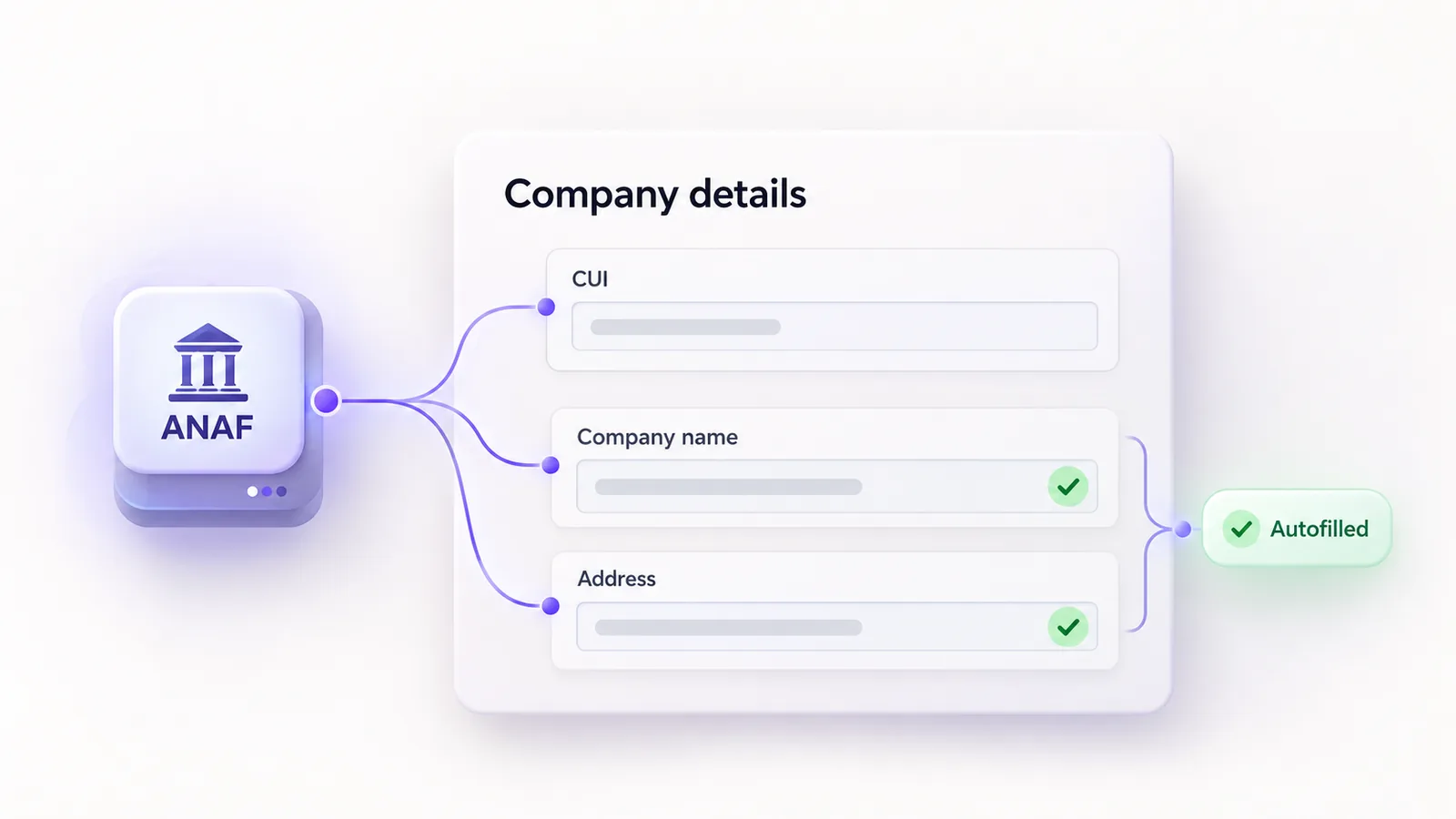
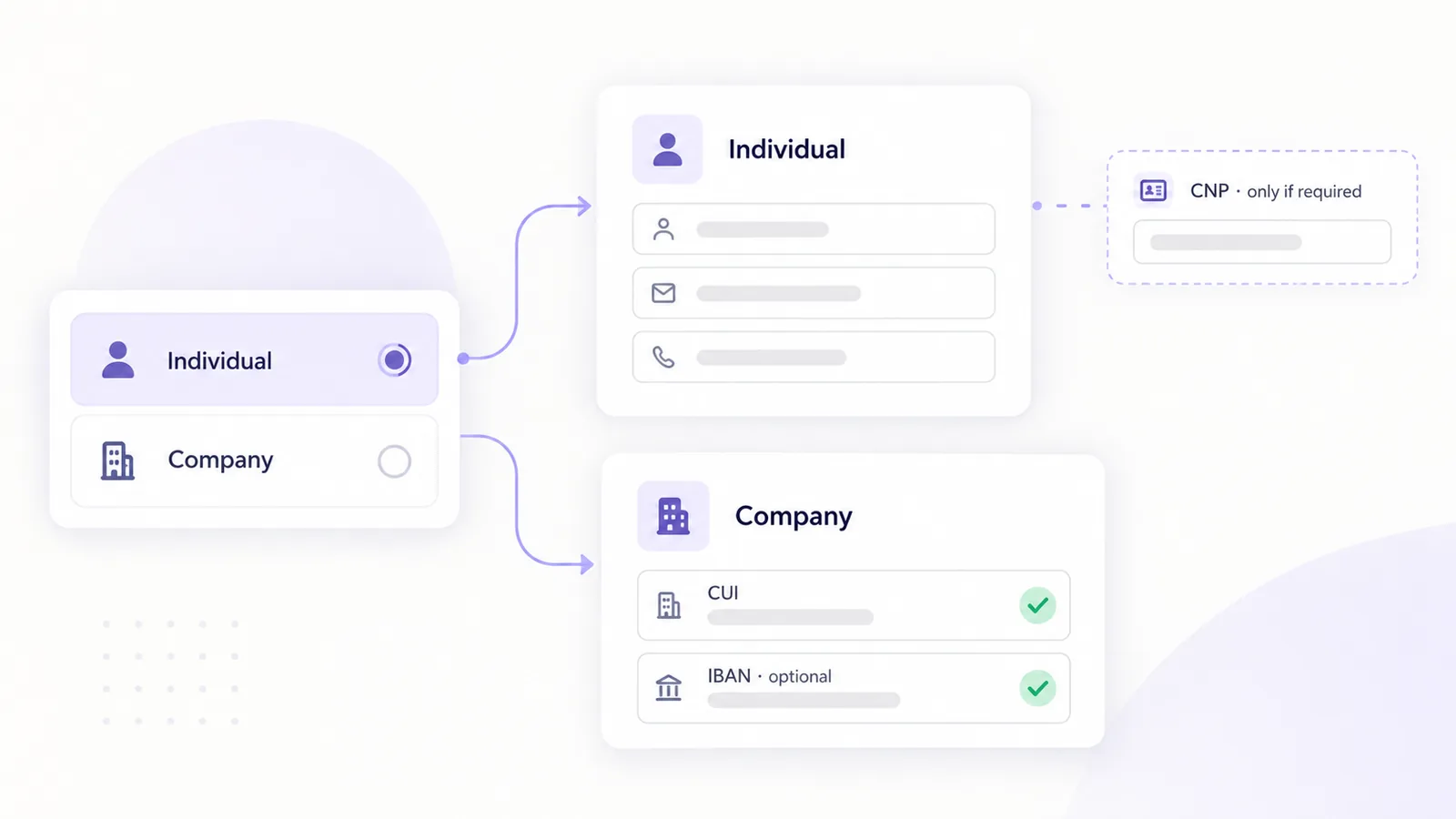
A Romanian store has a few needs the standard checkout does not cover: the customer type (individual or company), the CUI and the trade registry number, sometimes the CNP, and county and city selectors that match the couriers’ reference lists. In the classic checkout you add them with filters and validate them in woocommerce_after_checkout_validation, as described in the guide on fields and validation for individuals and companies. In blocks, the same fields are registered through the Additional Checkout Fields API, and the validation logic has to be rewritten for that API.
The city selector is the most sensitive case. If the store ships through couriers, the county and city must match the courier’s reference list exactly, otherwise the AWB is rejected; we explain why in the guide on courier integration. Any replacement of address fields in the checkout must be tested end to end by generating an AWB. Our MaxDev Facturare cu ANAF plugin works in both checkout variants because it registers its fields the way each variant expects.
What most often breaks when moving to blocks
Every time a store moves to blocks, the same list of problems shows up:
- Payment methods. A gateway without block support simply does not appear in the form.
- Shipping plugins with a locker map. Their interface was injected into the classic form through hooks, so it has to be rewritten for blocks.
- Fields added with old filters. They no longer appear, and the data is no longer saved on the order.
- Custom CSS. The selectors change, so styles written for the classic structure stop applying.
- Tracking events. Analytics scripts tied to the classic form may stop firing on purchase, which distorts your GA4 and paid campaign data.
- Coupons and pricing rules. Plugins that change the total in the checkout must be compatible with the Store API.
How to migrate safely
- Take a full backup and work on a staging environment, not on the live store.
- List the plugins that touch the checkout: payment, shipping, invoicing, marketing, tracking.
- Check each one’s documentation for declared block checkout support.
- On staging, replace the content of the Checkout page with the Checkout block.
- Test complete orders: individual, company, with a discount code, cash on delivery, card, locker delivery, and a deliberately triggered error.
- Repeat the tests on a phone, where most orders are lost.
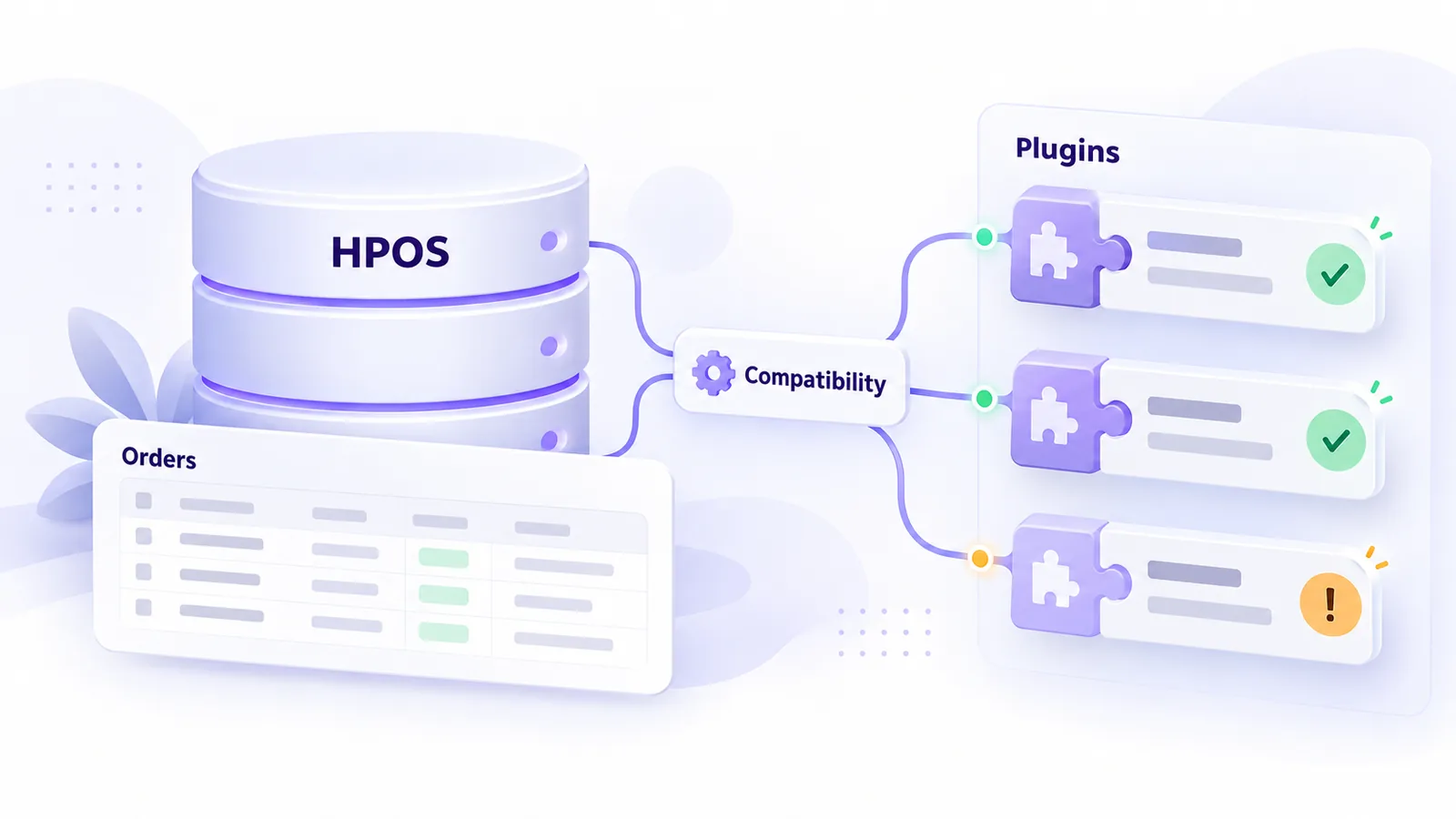
- Check the order in the admin, the emails received and the data sent to your invoicing software, together with the order storage mode described in the guide on HPOS.
- Check the purchase events in GA4 and in your pixels.
- Plan a rollback: keep the old page content so you can revert in minutes.
- Go live outside peak hours.
When to stay on classic and when to move to blocks
Stay on the classic checkout if the store depends on critical plugins without block support, if you have heavily customised fields and rules that have not been migrated yet, or if you have no time for testing. Move to blocks if the store is new, if your plugins declare support and if you want to align with WooCommerce’s official direction. Do not move just because it is “the new standard”: if the store sells well, a botched migration costs more than any benefit. We do not claim that blocks are faster either: if speed is your reason, measure first with Core Web Vitals, as we explain in speed optimisation.
Frequently asked questions
Can I use both checkout types in the same store?
Not on the same page: a Checkout page uses either the classic shortcode or the Checkout block. But you can switch back at any time by replacing the page content.
Is data in old orders lost if I move to blocks?
No. Existing orders stay in the database. Only new fields can be lost, if you do not register them in the new system before migrating.
Why do my custom fields not show in the block checkout?
Because the classic filters (such as woocommerce_checkout_fields) are not used by blocks. Fields must be registered through the Additional Checkout Fields API.
Does the MaxDev Facturare cu ANAF plugin work in both variants?
Yes. It uses the classic checkout and the Additional Checkout Fields API for blocks, with WooCommerce 8.9 or newer.
What is the biggest risk when migrating?
A payment method that does not show up in the form. Test payment with every active method before going live.
If you have a checkout with many customisations and want to move it safely, our WooCommerce development team does migrations with full tests on staging.