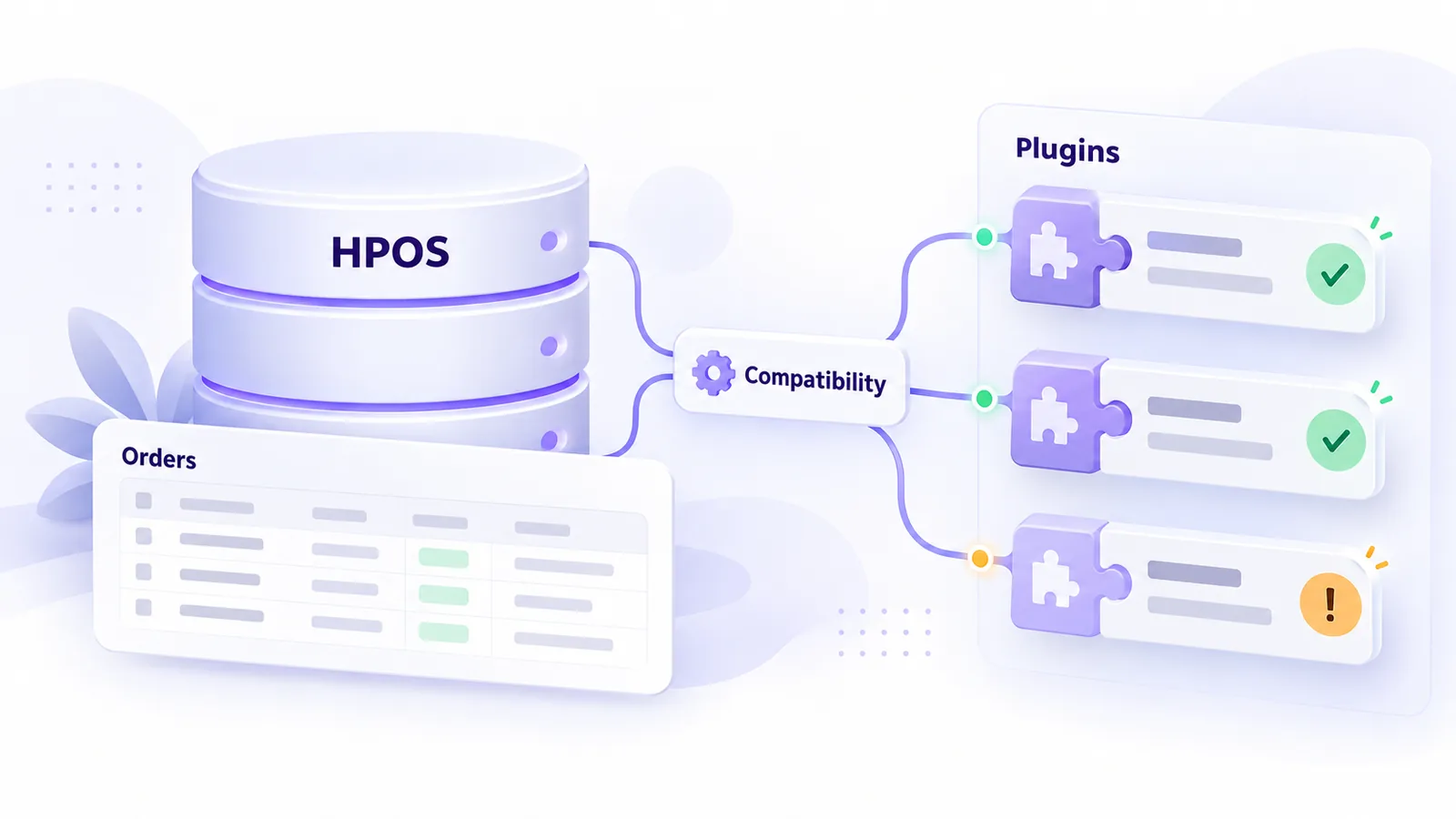
HPOS stands for High-Performance Order Storage, the newer way WooCommerce stores orders: in a set of dedicated tables instead of the general WordPress tables. If you sell with WooCommerce, you have probably seen the message “this plugin is not compatible with HPOS” at least once and wondered whether you need to do anything. The short answer is that you should understand what it means, because an incompatible plugin can block the activation of HPOS or, worse, read and write orders in the wrong place.
This guide explains what HPOS changes, how to check plugin compatibility, how to switch safely to the new storage mode and what your own code has to respect if you have custom plugins.
In short: HPOS moves orders out of wp_posts and wp_postmeta into their own tables, built for orders. You enable it from WooCommerce, Settings, Advanced, Features, and the same page shows you the incompatible plugins. A plugin is compatible if it accesses orders through the WooCommerce API (wc_get_order, $order->get_meta()), not directly from the database.
What HPOS is and what it changes
In the early days of WooCommerce, orders were saved as “post” records in the wp_posts table, and their data (address, total, payment method) in wp_postmeta. It was a quick solution to implement, but it has a limit: the same tables host pages, posts, products and orders, and a store with thousands of orders loads them in an unsuitable way.
HPOS replaces that structure with dedicated tables (among them wc_orders, wc_order_addresses, wc_order_operational_data and wc_orders_meta) designed for order queries. The official benefits are simpler queries, less load on the general content table and a better base for high volumes. For a small store the effect may not be felt in speed, and we do not promise numbers: the real benefit is that you are on an architecture WooCommerce keeps developing.
HPOS is the default for new stores in recent WooCommerce versions. Older stores still have the classic storage until you change it.
How to check which storage you use
In the admin, open WooCommerce, then Settings, Advanced, Features. The “Order data storage” section shows two options: the classic storage, through WordPress posts, and the high-performance storage, that is HPOS. The same page has a compatibility mode option, which synchronises orders in both places during the transition, and a list of plugins WooCommerce considers incompatible with HPOS.
How to check whether your plugins are compatible
A plugin declares compatibility in code, through a call to WooCommerce when it loads. If the plugin does not make that call, WooCommerce treats it as unknown. The steps to check are:
- Open the Features page and read the list of incompatible plugins.
- For every plugin that touches orders (invoicing, shipping, payment, exports), check its page or documentation for “HPOS compatible”.
- If a plugin does not declare compatibility, write to the developer and ask for a release date.
- Test the plugin’s real workflow on staging, not just its activation: generate an invoice, an AWB, a refund.
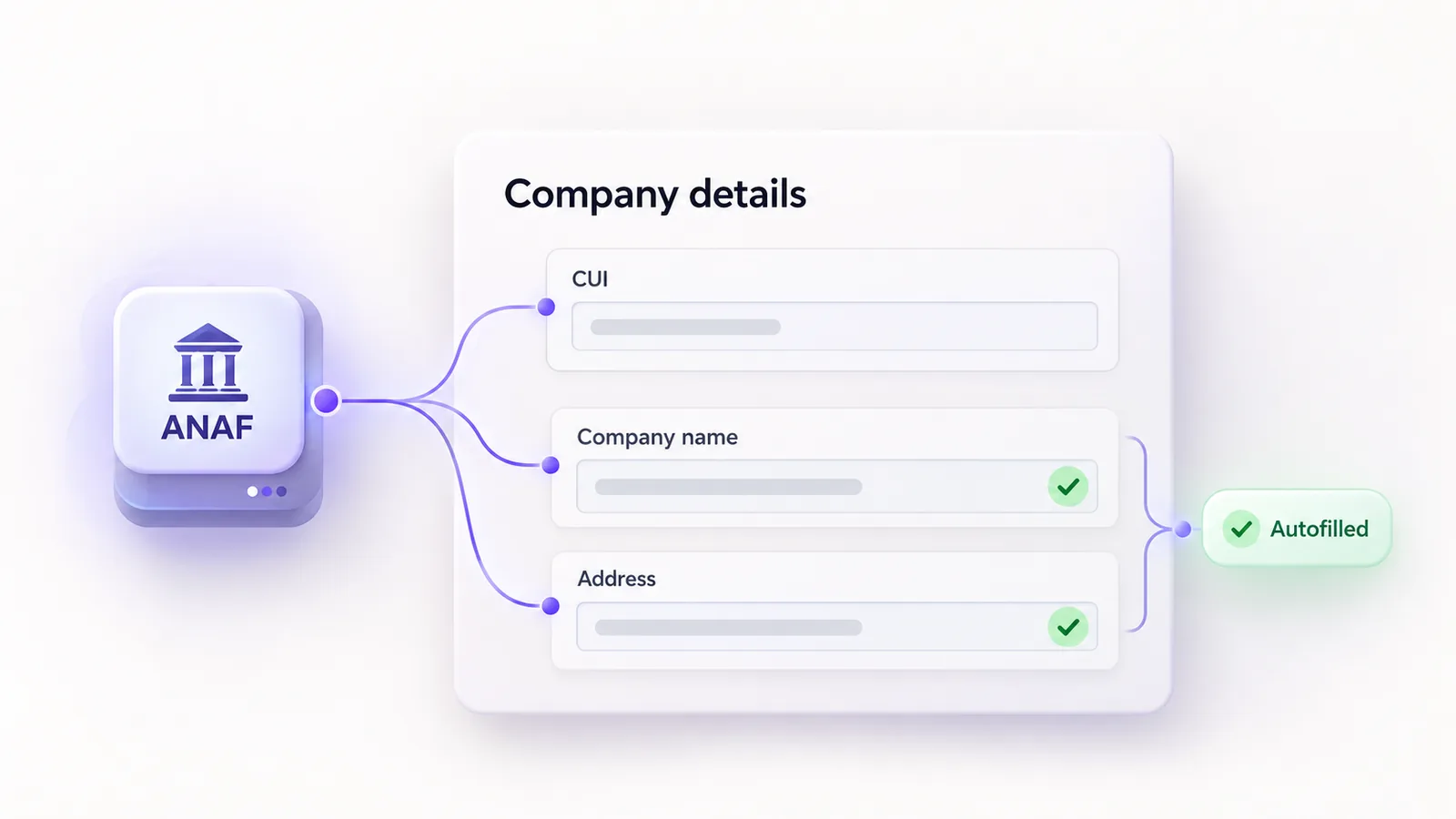
Our MaxDev Facturare cu ANAF plugin saves billing data through the WooCommerce API and declares HPOS compatibility, precisely so that customer data stays correct whichever storage mode you choose.
How to switch to HPOS safely
The switch happens in steps, and the order matters:
- Full backup of the database and files.
- Staging: copy the store and do the whole transition there first.
- Enable compatibility mode, so data is synchronised in both systems.
- Let the synchronisation finish and check that the number of orders matches between the two places.
- Choose HPOS as the main storage and test new orders with every payment and shipping method.
- Keep compatibility mode on for a while, so you can go back without losses.
- Turn the synchronisation off only when you are sure everything works, then run the final tests.
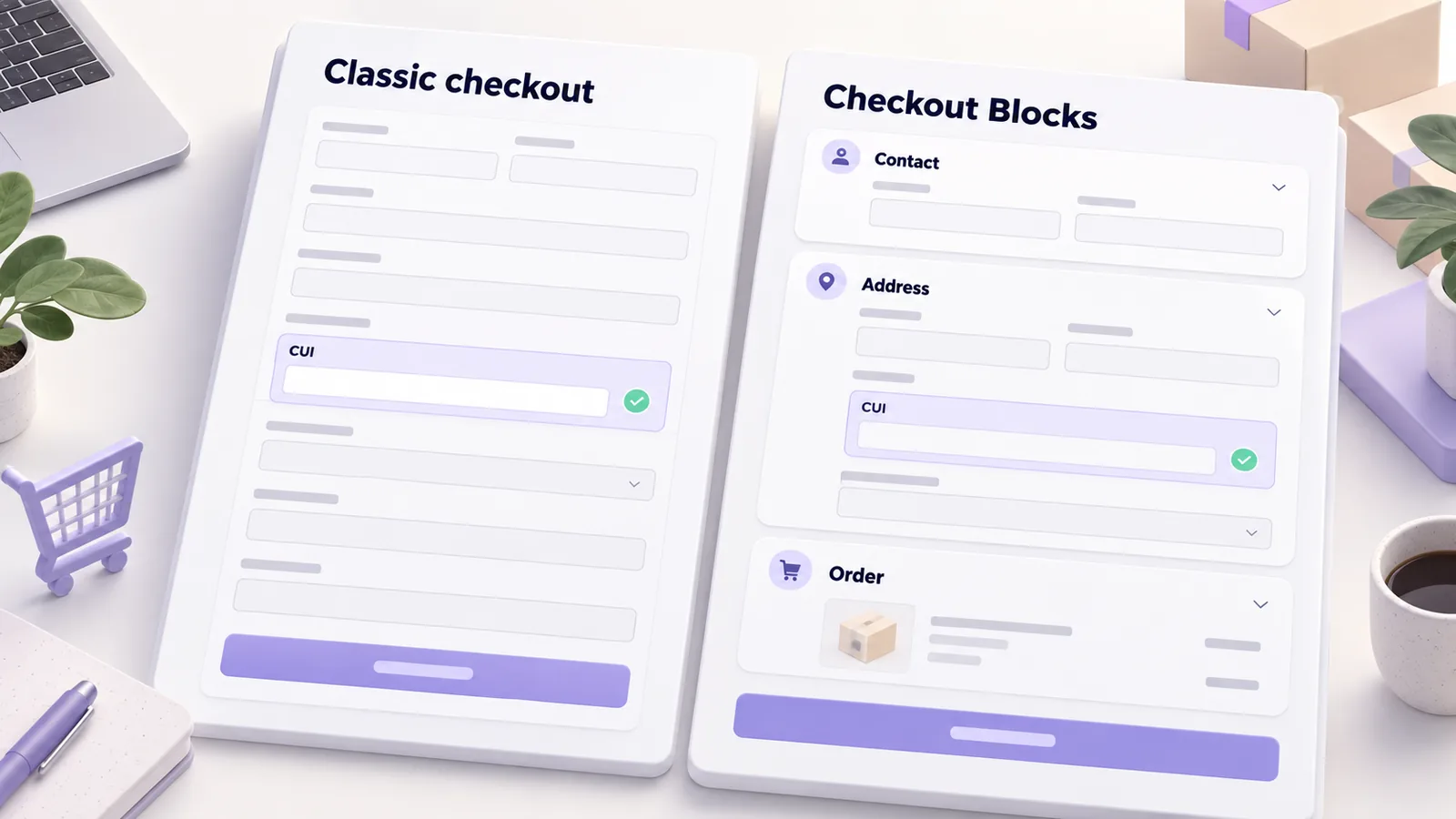
If the store also uses the block checkout, or you are migrating it at the same time, do not make both changes together: as described in the guide on block versus classic checkout, each change deserves separate testing, so you know which one caused a problem.
What your code has to respect
If you have custom plugins or code working with orders, the rule is one: do not read or write orders directly in the database, but through the WooCommerce API.
| Do not use | Use |
|---|---|
| get_post_meta( $order_id, ... ) | $order->get_meta( ... ) |
| update_post_meta( $order_id, ... ) | $order->update_meta_data( ... ) followed by $order->save() |
| get_post( $order_id ) | wc_get_order( $order_id ) |
| WP_Query with post_type shop_order | wc_get_orders( $args ) |
| SQL queries on $wpdb->posts | WooCommerce methods or the HPOS tables through the API |
The plugin must also declare compatibility, on the before_woocommerce_init action:
add_action( 'before_woocommerce_init', function () {
    if ( class_exists( \Automattic\WooCommerce\Utilities\FeaturesUtil::class ) ) {
        \Automattic\WooCommerce\Utilities\FeaturesUtil::declare_compatibility(
            'custom_order_tables',
            __FILE__,
            true
        );
    }
} );
The declaration does not replace testing. A plugin that declares compatibility but still uses get_post_meta on orders will only work while compatibility mode is on.
Common problems after enabling it
- Invoices or AWBs that stop generating. A plugin reads the order from the old place, while the new order exists only in the HPOS tables.
- Empty or incomplete exports. Reports written directly on
wp_postsno longer see new orders. - Missing metadata. Data saved through
update_post_metadoes not appear in HPOS except in compatibility mode. - Reports in other tools differ. Integrations with accounting or logistics software must be tested after the change. If you have a custom-built API integration, check it before, not after.
Who should enable HPOS now
New stores already have it. Existing stores with known, compatible plugins can switch at any time, following the steps above. Stores with many custom plugins or with ERP, courier and invoicing integrations should audit their code first, and if you have no in-house technical team, a WordPress maintenance service can handle the transition and the monitoring afterwards.
Frequently asked questions
What happens to old orders if I enable HPOS?
They are copied to the new tables through synchronisation, and the old ones stay where they are while compatibility mode is on. Nothing is deleted automatically.
Can I go back to the classic storage?
Yes, if you kept synchronisation on and the data is up to date in both places. That is why you should not turn synchronisation off right away.
Does HPOS make the store faster?
It can help with high order volumes, but we do not guarantee a specific speed. Measure before and after instead of assuming.
Does a plugin without a compatibility declaration not work?
It may work, but WooCommerce treats it as unknown. Test it on staging before moving the store to HPOS.
Do I have to move to the block checkout to use HPOS?
No. HPOS and the block checkout are two independent changes: you can use HPOS with the classic checkout.
If you want us to review the store together before the switch to HPOS, see how we work on WooCommerce development.