In a B2B store, the same product has different prices for different customers. WooCommerce wholesale pricing usually means a few price levels by customer group, but many B2B companies need more: each customer's negotiated price, straight from the ERP. You can show it in WooCommerce if prices come from the ERP for each customer and product pair and are applied only at display time, for the logged-in customer. The negotiated price is never written on the product, so no other customer sees it.
Below we explain how this works in practice, based on a WooCommerce B2B platform running in production with more than 700 customers: where prices come from, how the final price is calculated, what happens when an order is placed and what to check when a customer can't see their price.
At a glance
- The list price is one per product; the negotiated price is per customer and product and is never written on the product.
- Negotiated prices are pulled from the ERP on a schedule into a local table, not requested from the ERP on every page view.
- The final price is always calculated in the same order: list, negotiated, quantity discount, VAT.
- At checkout, the store doesn't force prices: the ERP calculates the document using its own rules.
- When a customer can't see their price, the cause is almost always a missing link between the account, the product and the ERP.
List price vs negotiated price: what's the difference?
The list price is a product's general price, the same for everyone. In WooCommerce it is the product's regular price, the one you set in the product data. Any visitor can see it, logged in or not, and you can sync it from the ERP straight onto the product.
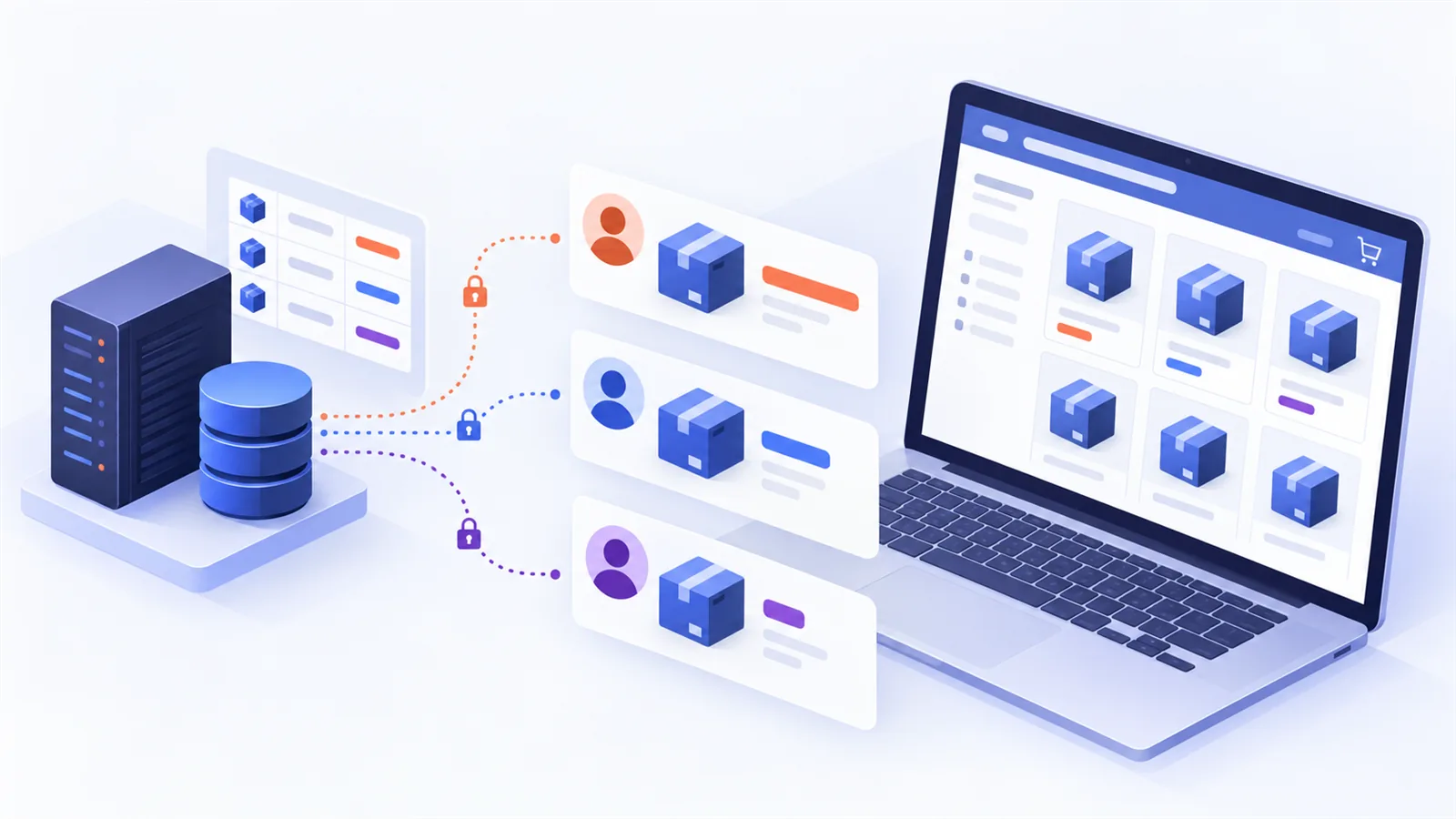
The negotiated (or preferential) price is the price agreed with a specific customer for a specific product. A HoReCa supplier can have dozens of negotiated prices with a restaurant chain and different ones with a single cafe. The key difference: a negotiated price belongs to a customer and product pair, not to the product. That's why it has no place in the product's price field. If you put it there, every customer would see it.
Where negotiated prices come from
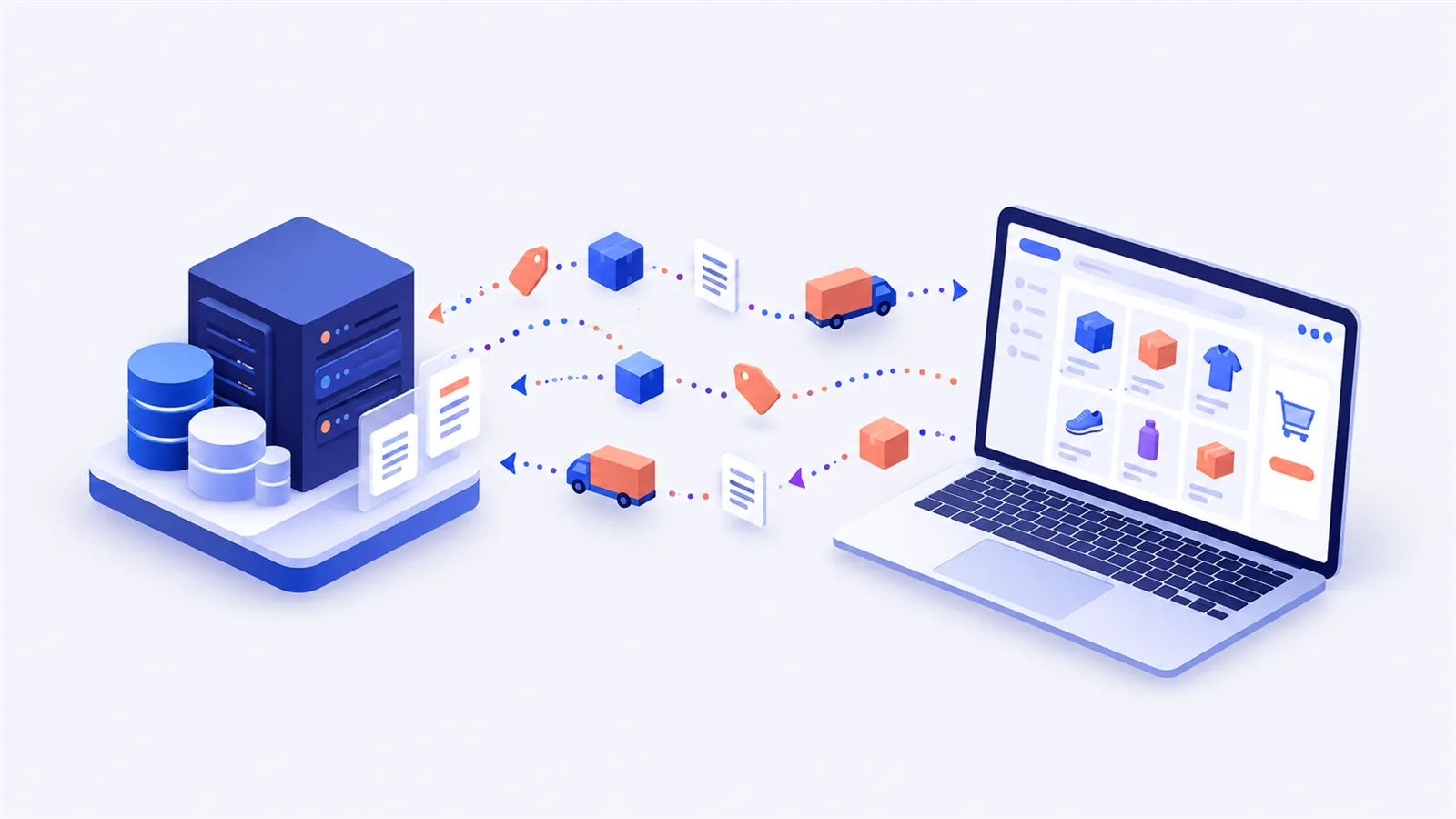
In most B2B companies, negotiated prices already live in the ERP: SoftOne, Nexus, Oracle or another system. There's no point re-entering them in the store and maintaining them in two places. The platform reads them from the ERP, through the ERP integration, and keeps them in a local table, separate from the products.
Prices are pulled on a schedule, not on every page view. The reason is practical: the ERP may respond slowly or be unavailable for a few minutes, and the store has to stay fast. The local table lets the price show instantly while the sync runs in the background. When a price changes in the ERP, it appears in the store at the next sync. We describe this kind of flow in more detail in our SoftOne and WooCommerce sync guide.
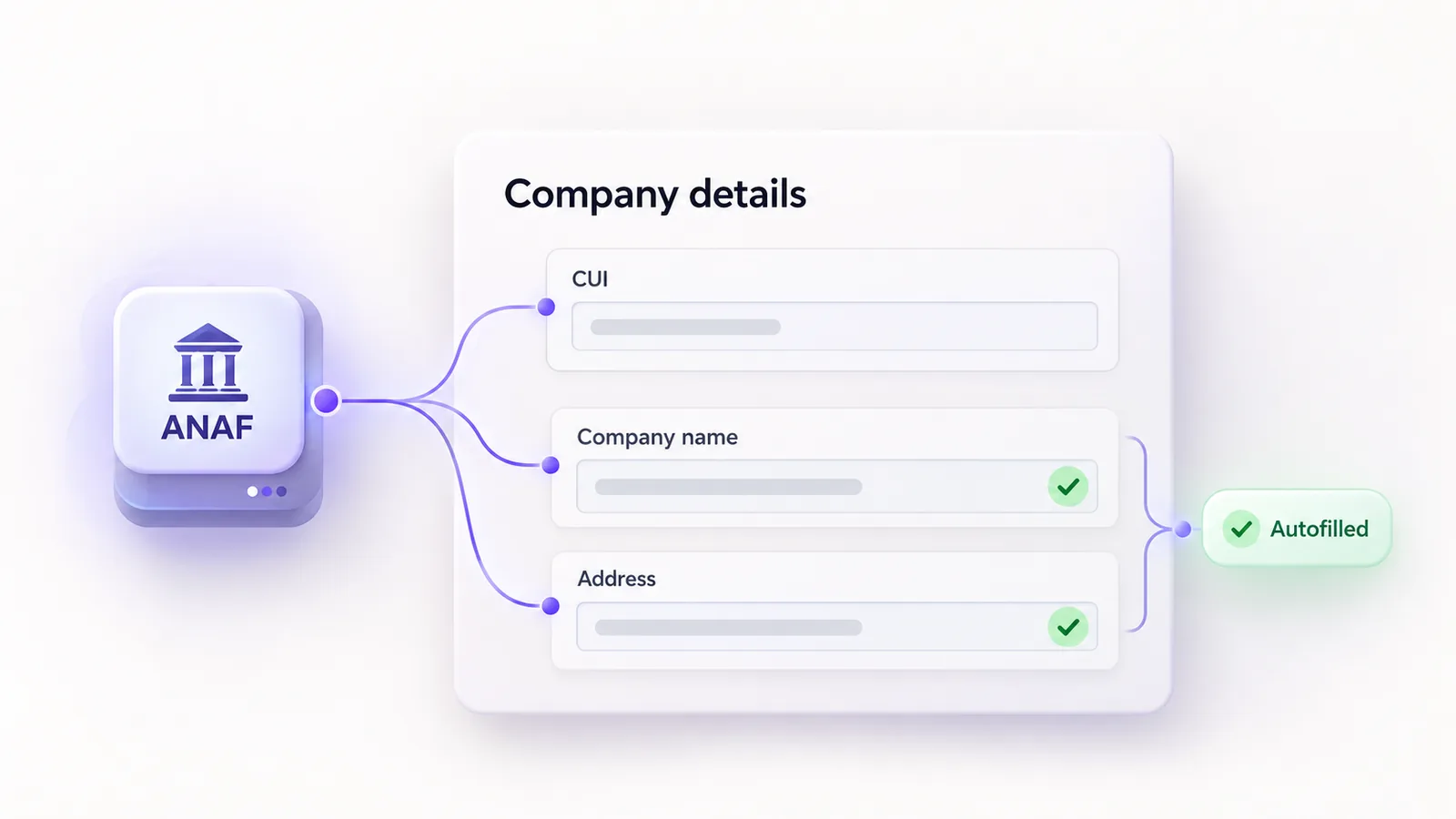
The store and the ERP are linked through two codes: the customer's ERP code, saved on their store account, and the product's ERP code, saved on each product. Without them, the store has no way of knowing which price belongs to whom. When company details are filled in automatically at account creation, for example from the Romanian company ID through ANAF, linking accounts to the ERP becomes simpler and less error-prone.
How a customer sees their own price
When a customer logs in, the store knows who they are and their ERP code. When a product is displayed, it looks up the price for that customer and product pair in the local table. If it finds one, it shows the negotiated price with a visible label that this is their price. If there's no negotiated price for that product, the customer sees the list price.
Guests and other customers never see the negotiated price. Because it isn't saved on the product, it doesn't show up on the page, in feeds or in search.
A useful detail for customers with large catalogs: an "only products with a negotiated price" filter that narrows the list to the products they have an agreed price for. It works only for logged-in customers linked to the ERP, because only they have negotiated prices.
Watch out for caching. Many stores use page caching for speed. If a page cached for one logged-in customer is served to another, the second customer could see the first one's price. Pages for logged-in users must be excluded from the page cache, and prices calculated on request for each customer.
How the final price is calculated
A B2B customer's final price is calculated in four steps, always in the same order:
| Step | What happens | Source |
|---|---|---|
| 1. List price | the product's general price | ERP, synced on a schedule |
| 2. Negotiated price | replaces the list price, only for the logged-in customer | ERP, per customer and product |
| 3. Quantity discount | applied on top of step 2, based on cart quantity | store rules, global or per product |
| 4. VAT | with or without VAT, per settings | product VAT rate from the ERP |
The order matters. The quantity discount applies on top of the negotiated price, not the list price, so a customer with a negotiated price who buys in volume gets both. In the cart and at checkout, each line shows the discount applied, so the customer can see exactly where the final price comes from and doesn't need to call sales to ask.
What happens when an order is placed
This is an architecture decision many implementations get wrong: when the order is sent to the ERP, the store doesn't force the prices. The order goes to the ERP with the customer, the products and the quantities, and the ERP calculates the document using its own pricing rules.
Why? Because the ERP stays the single source of truth for money. If a price changed in the ERP between the last sync and the order, the invoice still comes out right, with the ERP price. The store shows the price to help the customer decide, but the document's value is set by the ERP, just like for an order entered by hand. On the technical side, WooCommerce exposes orders through its REST API, and the ERP connector is built on top of it.
Customer groups or individual prices?
Not every B2B store needs negotiated prices per customer. Sometimes a few price levels by customer group are enough.
| Prices by customer group | Individual prices from the ERP | |
|---|---|---|
| Where they're defined | in the store, by role or group | in the ERP, per customer and product |
| Prices per product | a few levels | one for each customer with a negotiated price |
| Maintenance | manual, in the store | automatic, from the ERP |
| Good fit for | dozens of customers, simple price lists | hundreds of customers, individually negotiated prices |
If your prices fit three or four lists, customer groups may be enough. If every important customer has their own negotiated prices in the ERP, maintaining them in the store as well becomes a constant source of errors. In that case, a custom-built platform that reads prices straight from the ERP is worth it. We explain the difference on our WooCommerce B2B platform page too.
A customer can't see their negotiated price: what to check
When a customer calls because they see the list price instead of their own, the cause is almost always a missing link. Check, in order:
- Is the customer logged in? The negotiated price only shows after login.
- Is their account linked to the customer in the ERP? Without the customer's ERP code on the account, the store doesn't know which prices to look up.
- Is the product linked to the item in the ERP? Without the product's ERP code, the negotiated price can't be found for that product.
- Is there a negotiated price for that pair? A customer may have negotiated prices for only some products; for the rest they see the list price.
- Have prices synced recently? A price added to the ERP today only shows in the store after the next sync.
- Is the page coming from cache? If pages for logged-in users aren't excluded from the cache, the customer may see an old version or someone else's price.
A sync log helps a lot here: it shows when prices were last pulled and whether there were errors.
From our projects: Forelit
Forelit, a HoReCa company with more than 700 B2B customers, took orders by phone, through sales reps and by email, and negotiated prices were checked by hand in SoftOne. We built a platform on WooCommerce, connected directly to SoftOne, where each customer sees their negotiated prices, pulled from the ERP. Prices in the store match the ERP exactly, and pricing errors are close to zero. The details are in the Forelit case study.
Frequently asked questions
Can WooCommerce show a different price to each customer?
Yes. Each logged-in customer can see the price negotiated with them, pulled from the ERP for that customer and product pair. The price isn't written on the product, so it stays visible only to that customer.
Can other customers see my negotiated price?
No. The negotiated price is applied only at display time, for the logged-in customer it belongs to. It doesn't appear on the product, in feeds or in search, and pages for logged-in customers must be excluded from the cache.
Do prices update automatically when they change in the ERP?
Yes, at the next sync. Prices are pulled from the ERP on a schedule, so a change shows up in the store after a few minutes or hours, depending on the interval.
Can negotiated prices be combined with quantity discounts?
Yes. The quantity discount applies on top of the negotiated price, not the list price. In the cart, the customer sees the discount applied on each line.
Which price ends up on the invoice: the store's or the ERP's?
The ERP's. The order goes to the ERP with the customer, products and quantities, and the ERP calculates the document using its own rules. That way the invoice is correct even if a price changed between the sync and the order.
What is the difference between wholesale pricing by role and per-customer pricing?
Wholesale pricing by role sets a few price levels in the store, one per customer group. Per-customer pricing gives each customer their own negotiated prices, maintained in the ERP. The first suits simple price lists; the second suits companies with individually negotiated prices.
If you want each of your customers to see their negotiated prices right in the store, without price lists sent by email, see how we build a WooCommerce B2B platform connected to your ERP or tell us which ERP you use.